CAR PHONE OR CB RADIO
When installing a car phone or a CB radio in your NISSAN, be sure to observe the following cautions, otherwise the new equipment may adversely affect the electronic control modules and electronic control system harness.
WARNING
- A cellular telephone should not be used while driving so full attention may be given to vehicle operation. Some jurisdictions prohibit the use of cellular telephones while driving.
- If you must make a call while your vehicle is in motion, the hands-free cellular phone operational mode (if so equipped) is highly recommended. Exercise extreme caution at all times so full attention may be given to vehicle operation.
- If a conversation in a moving vehicle requires you to take notes, pull off the road to a safe location and stop your vehicle before doing so.
CAUTION
- Keep the antenna as far away as possible from the electronic control modules.
- Keep the antenna wire more than 8 in (20 cm) away from the electronic control system harness. Do not route the antenna wire next to any harness.
- Adjust the antenna standing-wave ratio as recommended by the manufacturer.
- Connect the ground wire from the CB radio chassis to the body.
- For details, consult a NISSAN dealer.
BLUETOOTH® HANDS-FREE PHONE SYSTEM (models with navigation system)
WARNING
- Use a phone after stopping your vehicle in a safe location. If you have to use a phone while driving, exercise extreme caution at all times so full attention may be given to vehicle operation.
- If you find yourself unable to devote full attention to vehicle operation while talking on the phone, pull off the road to a safe location and stop your vehicle before doing so.
CAUTION
To avoid draining the vehicle battery, use a phone after starting the engine.
Your NISSAN is equipped with Bluetooth® Hands-Free Phone System. If you are an owner of a compatible Bluetooth® enabled cellular phone, you can set up the wireless connection between your cellular phone and the in-vehicle phone module. With Bluetooth® wireless technology, you can make or receive a telephone call with your cellular phone in your pocket.
Once a cellular phone is connected to the in-vehicle phone module, no phone connecting
4-74 Center display, heater, air conditioner, audio, phone and voice recognition systems
procedure is required anymore. Your phone is automatically connected with the in-vehicle phone module when the ignition switch is pushed to the ON position with the registered cellular phone turned on and carried in the vehicle.
You can register up to 5 different Bluetooth® cellular phones in the in-vehicle phone module. However, you can talk on only one cellular phone at a time.
The NISSAN Voice Recognition system supports the phone commands, so dialing a phone number using your voice is possible. For more details, see “NISSAN VOICE RECOGNITION SYSTEM (models with navigation system)” later in this section; page 4-98.
Before using the Bluetooth® Hands-Free Phone System, refer to the following notes.
- Set up the wireless connection between a compatible cellular phone and the in-vehicle phone module before using the Bluetooth® Hands-Free Phone System.
- Some Bluetooth® enabled cellular phones may not be recognized by the in-vehicle phone module. Please visit www.nissanusa.com/bluetooth for a recommended phone list.
- You will not be able to use a hands-free phone under the following conditions:
- Your vehicle is outside of the telephone service area.
- Your vehicle is in an area where it is difficult to receive radio waves; such as in a tunnel, in an underground parking garage, behind a tall building or in a mountainous area.
- Your cellular phone is locked in order not to be dialed.
- When the radio wave condition is not ideal or ambient sound is too loud, it may be difficult to hear the other person’s voice during a call.
- Immediately after the ignition switch is pushed to the ON position, it may be impossible to receive a call for a short period of time.
- Do not place the cellular phone in an area surrounded by metal or far away from the in-vehicle phone module to prevent tone quality degradation and wireless connection disruption.
- While a cellular phone is connected through the Bluetooth® wireless connection, the battery power of the cellular phone may discharge quicker than usual.
- If the Bluetooth® Hands-Free Phone System seems to be malfunctioning, please visit www.nissanusa.com/bluetooth for troubleshooting help.
- Some cellular phones or other devices may cause interference or a buzzing noise to come from the audio system speakers. Storing the device in a different location may reduce or eliminate the noise.
- Refer to the cellular phone Owner’s Manual regarding the telephone pairing procedure specific to your phone, battery charging, cellular phone antenna, etc.
- The antenna display on the monitor will not coincide with the antenna display of some cellular phones.
- Keep the interior of the vehicle as quiet as possible to hear the caller’s voice clearly as well as to minimize its echoes.
- If reception between callers is unclear, adjusting the incoming or outgoing call volume may improve the clarity.
REGULATORY INFORMATION
FCC Regulatory information
— CAUTION: To maintain compliance with FCC’s RF exposure guidelines, use only the supplied antenna. Unauthorized antenna, modification, or attachments could damage the transmitter and may violate FCC regulations.
Center display, heater, air conditioner, audio, phone and voice recognition systems 4-75
— Operation is subject to the following two conditions:
- this device may not cause interference and
- this device must accept any interference, including interference that may cause undesired operation of the device
IC Regulatory information — Operation is subject to the following two conditions: (1) this device may not cause interference, and (2) this device must accept any interference, including interference that may cause undesired operation of the device.
— This Class B digital apparatus meets all requirements of the Canadian Interference-Causing Equipment Regulations.
Bluetooth trademark:
BLUETOOTH® is a trademark owned by Bluetooth SIG, Inc., U.S.A. and licensed to Clarion Co., Ltd.
VOICE COMMANDS You can use voice commands to operate various Bluetooth® Hands-Free Phone System features using the NISSAN Voice Recognition system.
For more details, see “NISSAN VOICE RE-
COGNITION SYSTEM (models with navigation system)” later in this section; page 4-98.

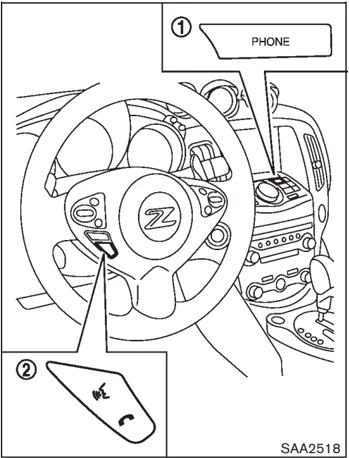
CONTROL BUTTONS
- PHONE button
- TALK/PHONE SEND button
4-76 Center display, heater, air conditioner, audio, phone and voice recognition systems
 SAA2519
CONNECTING PROCEDURE
- Push the PHONE button or the ☞ button, and select the "Connect Phone" key.
 SAA2520
- When a PIN code appears on the screen, operate the compatible Bluetooth® cellular phone to enter the PIN code.
The connecting procedure of the cellular phone varies according to each cellular phone. See the cellular phone Owner's Manual for the details. You can also visit www.nissanusa.com/bluetooth or call NISSAN Consumer Affairs Department for instructions on pairing NISSAN recommended cellular phones.
When the connection process is completed, the screen will return to the Phone menu display.
PHONE SELECTION
Up to 5 cellular phones can be registered to the system. To switch to connect another cellular phone, push PHONE button and select the "Connected Phones" key. The registered cellular phones are shown on the list. If you select a cellular phone that is different from the one currently connected, the newly selected phone will be connected to the system.
VEHICLE PHONEBOOK
This vehicle has two phonebooks available for hands-free use. Depending on the phone, the system may automatically download the entire cell phone's phonebook into the "Handset Phonebook". For the details about downloading a phonebook, see "PHONE SETTING" later in this section. If a phonebook does not automatically download, the vehicle phonebook may be set for up to 40 entries. This phonebook allows the recording of a name to speak while using voice recognition.
Center display, heater, air conditioner, audio, phone and voice recognition systems 4-77
 SAA2521
- Push the PHONE button and select the “Vehicle Phonebook” key.
- Select the “Add New” key at the top of the screen.
 SAA2522
- Choose the method for entering the phonebook entry. For this example, select “Enter Number by Keypad”.
- Enter the digits and select the “OK” key. (See “HOW TO USE TOUCH SCREEN” earlier in this section.)
 SAA2523
- Select the “Voicetag” key to record a name to speak when using the NISSAN Voice Recognition system.
- Select the “Store” key and prepare to speak the name after the tone.
- When the voicetag is successfully saved, select the “OK” key to save the phonebook entry.
- After the phonebook entry is saved, it will show a screen that is ready to call the number. Press the BACK button to return to the Vehicle Phonebook.
There are different methods to input a phone number. Select one of the following options
4-78 Center display, heater, air conditioner, audio, phone and voice recognition systems
instead of “Enter Number by Keypad” in step 3.
— Copy from Call History
The system will show a list of incoming, outgoing or missed calls that were downloaded from the connected cellular phone (depending on the phone’s compatibility). Select one of these entries to save in the vehicle phonebook.
— Copy from the Handset
The system will show the connected cellular phone’s phonebook that was downloaded (depending on the phone’s compatibility). Select one of these entries to save in the vehicle phonebook.
 SAA2620
Editing the Vehicle Phonebook
- Push the PHONE button and select the “Vehicle Phonebook” key.
- Select the desired entry from the displayed list.
- Select the “Edit” key.
- Select the desired item to change.
 SAA2523
The following editing items are available:
• Entry #
Changes the displayed number of the selected entry.
• Name
Edit the name of the entry using the keypad displayed on the screen.
• Number
Edit the phone number using the keypad displayed on the screen.
• Type
Select an icon from the icon list.
Center display, heater, air conditioner, audio, phone and voice recognition systems 4-79
- Voicetag Confirm and store the voicetag. Voicetags allow easy dialing using the NISSAN Voice Recognition system. (See “NISSAN VOICE RECOGNITION SYSTEM (models with navigation system)” later in this section.) To delete an entry, select the “Delete” key at step 3.
SAA2524
MAKING A CALL
To make a call, follow this procedure.
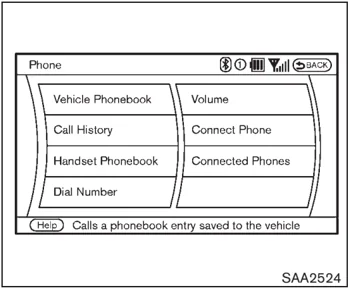
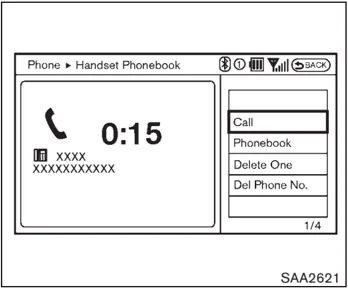
- Push the PHONE button on the instrument panel or the button on the steering wheel. The “PHONE” screen will appear on the display.
- Select the “Handset Phonebook” key on the “PHONE” menu.
- Select the desired entry from the list.
- Confirm the correct entry by selecting for the correct number from the list.
SAA2621
- Select the “Call” key to start dialing the number.
There are different methods to make a call. Select one of the following options instead of “Handset Phonebook” in step 2 above.
- Vehicle Phonebook Select an entry stored in the Vehicle’s Phonebook.
- Call History Select an outgoing, incoming or missed call downloaded from your cell phone (depending on your phone’s compatibility).
4-80 Center display, heater, air conditioner, audio, phone and voice recognition systems
- Dial Number Input the phone number manually using the keypad displayed on the screen. (See “HOW TO USE TOUCH SCREEN” earlier in this section.)
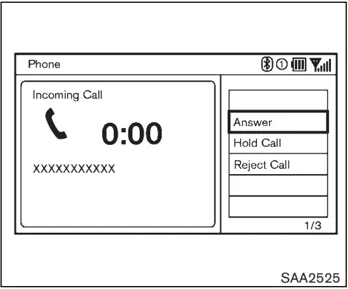
RECEIVING A CALL When you hear a phone ring, the display will change to the incoming call mode. To receive a call, perform one of the following procedures listed below. a) Select the “Answer” key. b) Push the PHONE button on the instrument panel. c) Push the ☎ button on the steering wheel.
There are some options available when receiving a call. Select one of the following displayed on the screen.
- Answer Accept an incoming call to talk.
- Hold Call Put an incoming call on hold.
- Reject Call Reject an incoming call.
To finish the call, perform one of the following procedures listed below. a) Select the “Hang up” key. b) Push the PHONE button on the instrument panel. c) Push the ☎ button on the steering wheel.
Center display, heater, air conditioner, audio, phone and voice recognition systems 4-81
 SAA2526
DURING A CALL
There are some options available during a call. Select one of the following displayed on the screen if necessary.
-
Hang up Finish the call.
-
Use Handset Transfer the call to the cellular phone.
-
Mute Mute your voice to the person.
-
Keypad Using the touch tone, send digits to the connected party for using services such as voicemail.
-
Cancel Mute This will appear after "Mute" is selected. Mute will be canceled.
To adjust the person's voice to be louder or quieter, push the volume control switch (+ or −) on the steering wheel or turn the volume control knob on the instrument panel while talking on the phone. This adjustment is also available in the SETTING mode.
 SAA2527
PHONE SETTING
To set up the Bluetooth® Hands-Free Phone System to your preferred settings, push the SETTING button on the instrument panel and select the "PHONE" key.
Edit Vehicle Phonebook To edit the vehicle phonebook, use the same procedure as described in "VEHICLE PHONE-BOOK" earlier in this section.
Delete Phonebook The vehicle phonebook entries can be deleted all at the same time or one by one.
4-82 Center display, heater, air conditioner, audio, phone and voice recognition systems
Download Handset Phonebook Download the contacts registered in a Bluetooth® cellular phone. Availability of this function depends on each cellular phone. The memory downloading procedure from the cellular phone also varies according to each cellular phone. See cellular phone Owner's Manual for details.
Volume The following kinds of phone volume can be set. Pushing the PHONE button and selecting the "Volume" key can also operate the same settings.
-
Ringtone/Incoming Call/Outgoing Call To increase or decrease the volume, select the "Ringtone", "Incoming Call" or "Outgoing Call" key and adjust it with the multi-function controller.
-
Automatic Hold When this function is activated, an incoming phone call is automatically held.
-
Vehicle Ringtone When this function is activated, a specific ringtone that is different from the cellular phone will sound when receiving a call.
Auto Download When this item is activated, the phonebook of a hands-free phone is automatically downloaded at the same time that the hands-free phone is connected.
Center display, heater, air conditioner, audio, phone and voice recognition systems 4-83
TROUBLESHOOTING GUIDE
The system should respond correctly to all voice commands without difficulty. If problems are encountered, try the following solutions. Where the solutions are listed by number, try each solution in turn, starting with number 1, until the problem is resolved.
| Symptom | Solution |
|---|---|
| System fails to interpret the command correctly. | 1. Ensure that the command is valid. (See “NISSAN VOICE RECOGNITION SYSTEM (models with navigation system)” later in this section; page 4-98.) |
| 2. Ensure that the command is spoken after the tone. | |
| 3. Speak clearly without pausing between words and at a level appropriate to the ambient noise level in the vehicle. | |
| 4. Ensure that the ambient noise level is not excessive (for example, windows open or defroster on). NOTE: If it is too noisy to use the phone, it is likely that the voice commands will not be recognized. | |
| 5. If more than one command was said at a time, try saying the commands separately. | |
| The system consistently selects the wrong voicetag. | 1. Ensure that the voicetag requested matches what was originally stored. (See “VEHICLE PHONEBOOK” earlier in this section.) |
| 2. Replace one of the names being confused with a new name. |
4-84 Center display, heater, air conditioner, audio, phone and voice recognition systems
Model "Z34-D" EDITED: □□□□/□/10
BLUETOOTH® HANDS-FREE PHONE SYSTEM (models without navigation system)
WARNING
- Use a phone after stopping your vehicle in a safe location. If you have to use a phone while driving, exercise extreme caution at all times so full attention may be given to vehicle operation.
- If you find yourself unable to devote full attention to vehicle operation while talking on the phone, pull off the road to a safe location and stop your vehicle before doing so.
CAUTION
To avoid draining the vehicle battery, use a phone after starting the engine.

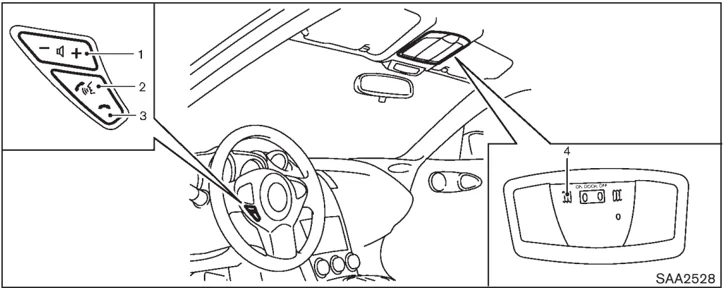
- Volume control switch –/+
- PHONE SEND button
- PHONE END button
- Microphone
Your NISSAN is equipped with the Bluetooth® Hands-Free Phone System. If you have a compatible Bluetooth® enabled cellular phone, you can set up the wireless connection between your cellular phone and the in-vehicle phone module. With Bluetooth® wireless technology, you can make or receive a hands-free telephone call in your vehicle.
Once your cellular phone is connected to the in-vehicle phone module, no other phone connecting procedure is required. Your phone is automatically connected with the in-vehicle phone module when the ignition switch is pushed to the ON position with the connected cellular phone turned on and carried in the vehicle.
You can connect up to 5 different Bluetooth® cellular phones in the in-vehicle phone module. However, you can talk on only one cellular phone at a time.
Before using the Bluetooth® Hands-Free Phone System, refer to the following notes.
- Set up the wireless connection between a compatible cellular phone and the in-vehicle phone module before using the Bluetooth®
Center display, heater, air conditioner, audio, phone and voice recognition systems 4-85
Hands-Free Phone System.
-
Some Bluetooth® enabled cellular phones may not be recognized by the in-vehicle phone module. Please visit www.nissanusa.com/bluetooth for a recommended phone list and connecting.
-
You will not be able to use a hands-free phone under the following conditions: — Your vehicle is outside of the telephone service area. — Your vehicle is in an area where it is difficult to receive radio waves; such as in a tunnel, in an underground parking garage, near a tall building or in a mountainous area. — Your cellular phone is locked to prevent it from being dialed.
-
When the radio wave condition is not ideal or ambient sound is too loud, it may be difficult to hear the other person's voice during a call.
-
Immediately after the ignition switch is pushed to the ON position, it may be impossible to receive a call for a short period of time.
-
Do not place the cellular phone in an area surrounded by metal or far away from the in-vehicle phone module to prevent tone quality degradation and wireless connection disruption.
-
While a cellular phone is connected through the Bluetooth® wireless connection, the battery power of the cellular phone may discharge quicker than usual. The Bluetooth® Hands-Free Phone System cannot charge cellular phones.
-
If the Bluetooth® Hands-Free Phone System seems to be malfunctioning, see "Troubleshooting guide" later in this section. You can also visit www.nissanusa.com/bluetooth for troubleshooting help.
-
Some cellular phones or other devices may cause interference or a buzzing noise to come from the audio system speakers. Storing the device in a different location may reduce or eliminate the noise.
-
Refer to the cellular phone Owner's Manual regarding battery charging, cellular phone antenna, etc.
-
This wireless hands free car kit is based on Bluetooth® technology, — Frequency: 2402 MHz - 2480 MHz — Output Power: 7,94 dBm E.I.R.P — Modulation: FHSS GFSK 8DPSK, \pi/4DQPSK — Number of Channel: 79 — This wireless equipment can't be used for any services related to safety because there is the possibility of radio interference.
REGULATORY INFORMATION
FCC Regulatory information
— CAUTION: To maintain compliance with FCC's RF exposure guidelines, use only the supplied antenna. Unauthorized antenna, modification, or attachments could damage the transmitter and may violate FCC regulations.
— Operation is subject to the following two conditions:
-
this device may not cause interference and
-
this device must accept any interference, including interference that may cause undesired operation of the device
IC Regulatory information
— Operation is subject to the following two conditions: (1) this device may not cause interference, and (2) this device must accept any interference, including interference that may cause undesired operation of the device.
4-86 Center display, heater, air conditioner, audio, phone and voice recognition systems
— This Class B digital apparatus meets all requirements of the Canadian Interference-Causing Equipment Regulations.
Bluetooth trademark:
BLUETOOTH® is a trademark owned by Bluetooth SIG, Inc., U.S.A. and licensed to Visteon Corporation.
USING THE SYSTEM
The NISSAN Voice Recognition system allows hands-free operation of the Bluetooth® Hands-Free Phone System.
If the vehicle is in motion, some commands may not be available so full attention may be given to vehicle operation.
Initialization
When the ignition switch is pushed to the ON position, NISSAN Voice Recognition is initialized, which takes a few seconds. If the button is pushed before the initialization completes, the system will accept any command.
Operating tips
To get the best performance out of the NISSAN Voice Recognition system, observe the following:
-
Keep the interior of the vehicle as quiet as possible. Close the windows to eliminate surrounding noises (traffic noises, vibration sounds, etc.), which may prevent the system from recognizing voice commands correctly.
-
Wait until the tone sounds before speaking a command. Otherwise, the command will not be received properly.
-
Start speaking a command within 5 seconds after the tone sounds.
-
Speak in a natural voice without pausing between words.
Giving voice command
To operate NISSAN Voice Recognition, push and release the button located on the steering wheel. After the tone sounds, speak a command.
The command given is picked up by the microphone, and voice feedback is given when the command is accepted.
-
If you need to hear the available commands for the current menu again, say “Help” and the system will repeat them.
-
If a command is not recognized, the system announces, “Command not recognized. Please say again.” Repeat the command in a clear voice.
-
If you want to go back to the previous command, you can say “Go back” or “Correction” anytime the system is waiting for a response.
-
You can cancel a command when the system is waiting for a response by saying, “Cancel” or “Quit.” The system announces “Cancel” and ends the VR session. You can also push and hold the button for 5 seconds on the steering wheel at any time to cancel the VR session. Whenever the VR session is cancelled, a double beep is played to indicate you have exited the system.
-
If you want to adjust the volume of the voice feedback, push the volume control switch (+ or -) on the steering wheel while being provided with feedback. You can also use the radio volume control knob.
-
In most cases you can interrupt the voice feedback to speak the next command by pressing the button on the steering wheel.
-
To use the system faster, you may speak the second level commands with the main menu command on the main menu. For example, press the button and after the tone say, “Call Redial.” Note: The combined command of Call and (a Name) cannot be used.
Center display, heater, air conditioner, audio, phone and voice recognition systems 4-87
How to say numbers
NISSAN Voice Recognition requires a certain way to speak numbers in voice commands. Refer to the rules and examples below.
- Either “zero” or “oh” can be used for “0”. Example: 1-800-662-6200 — “One eight oh oh six six two six two oh oh”, or — “One eight zero zero six six two six two oh oh”
- Words can be used for the first 4 digits places only. Example: 1-800-662-6200 — “One eight hundred six six two six two oh oh”, — NOT “One eight hundred six six two sixty two hundred, and — NOT “One eight oh oh six six two sixty two hundred.
- Numbers can be spoken in small groups. The system will prompt you to continuing entering digits, if desired. Example: 1-800-662-6200 — “One eight zero zero” The system repeats the numbers and prompts you to enter more. — “six six two” The system repeats the numbers and prompts you to enter more. — “six two zero zero”
- You can say “Star” for “*” and “Pound” for “#” at any time in any position of the phone number. (Available only when using the “Special Dialing” command.) Example: 1-555-1212 *123 — “One five five five one two one two star one two three”
- Say “pound” for “#”. Say “star” for “*” (available when using the “Special Dialing” command and the “Send” command during a call).
- Say “plus” for “+” (available only when using the “Special Dialing” command).
- Say “pause” for a 2 second pause (available only when storing a phone book number).
See “Making a call by entering a phone number” later in this section and “LIST OF VOICE COMMANDS” later in this section for more information.
NOTE: For best results, say phone numbers as single digits. The voice command “Help” is available at any time. Please say the “Help” command to get information about how to use the system.
INFO
- If you are controlling the telephone system by voice command for the first time or do not know the appropriate voice command, speak “Help”. The system announces the available commands.
- When you speak numbers, you can speak both “zero” or “oh” for “0”.
Manual command selection
Commands can be selected manually. While the commands are displayed on the audio screen, select a command by operating the audio tuning switch, and then push the switch. Once a command is manually selected, the voice command function is cancelled. To return to voice command mode, push the switch to cancel the current operation, and then perform the first procedure of voice command.
4-88 Center display, heater, air conditioner, audio, phone and voice recognition systems
 SAA2557
CONTROL BUTTONS
The control buttons for the Bluetooth® Hands-Free Phone System are located on the steering wheel.
PHONE SEND
Push the button to initiate a VR session or answer an incoming call.
You can also use the button to interrupt system feedback and give a command at once.
PHONE END
While the voice recognition system is active, press the button to go back one step. Press and hold the button for 5 seconds to quit the voice recognition system at any time.
GETTING STARTED
The following procedures will help you get started using the Bluetooth® Hands-Free Phone System with NISSAN Voice Recognition. For additional command options, refer to "LIST OF VOICE COMMANDS" later in this section.
Choosing a language
You can interact with the Bluetooth® Hands-Free Phone System using English, Spanish or French.
To change the language, perform the following.
-
Press and hold the button for more than 5 seconds.
-
The system announces: "Press the PHONE SEND (button) for the hands-free phone system to enter the speaker adaptation mode or press the PHONE END (button) to select a different language."
-
Push the button.
For information on speaker adaptation, see "SPEAKER ADAPTATION (SA) MODE" later in this section.
- The system announces the current language and gives you the option to change the language to Spanish (in Spanish) or French (in French). Use the following chart to select the language.
NOTE: You must push the button or the button within 5 seconds to change the language.
- If you decide not to change the language, do not press either button. After 5 seconds, the VR session will end, and the language will not be changed.
Connecting procedure
NOTE: The connecting procedure must be performed when the vehicle is stationary. If the vehicle starts moving during the procedure, the procedure will be cancelled.
Center display, heater, air conditioner, audio, phone and voice recognition systems 4-89
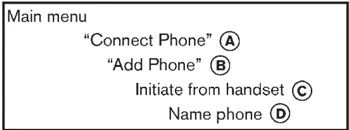
Main menu “Connect Phone” A “Add Phone” B Initiate from handset C Name phone D
- Push the button on the steering wheel. The system announces the available commands.
- Say: “Connect Phone” A . The system acknowledges the command and announces the next set of available commands.
- Say: “Add phone” B . The system acknowledges the command and asks you to initiate pairing from the phone handset C .
The connecting procedure of the cellular phone varies according to each cellular phone. See the cellular phone Owner’s Manual for details. You can also visit www. nissanusa.com/bluetooth for instructions on connecting NISSAN recommended cellular phones.
When prompted for a Passkey code, enter “1234” from the handset. The Passkey code “1234” has been assigned by NISSAN and cannot be changed.
- The system asks you to say a name for the phone D .
If the name is too long or too short, the system tells you, then prompts you for a name again.
Also, if more than one phone is connected and the name sounds too much like a name already used, the system tells you, then prompts you for a name again.
Making a call by entering a phone number
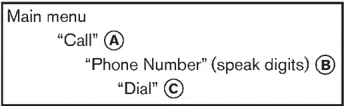
Main menu “Call” A “Phone Number” (speak digits) B “Dial” C
-
Push the button on steering wheel. A tone will sound.
-
Say: “Call” A . The system acknowledges the command and announces the next set of available commands.
-
Say: “Phone Number” B . The system acknowledges the command and announces the next set of available commands. Say: “Special Dialing” to dial more than 10 digits or any special characters.
-
Say the number you wish to call starting with the area code in single digit format. If the system has trouble recognizing the correct phone number, try entering the number in the following groups: 3-digit area code, 3-digit prefix and the last 4-digits. For example, 555-121-3354 can be said as “five five five” as the 1st group, then “one two one” as the 2nd group, and “three three five four” as the 3rd group. For dialing more than 10 digits or any special characters, say “Special Dialing”. See “How to say numbers” earlier in this section, for more information.
-
When you have finished speaking the phone number, the system repeats it back and announces the available commands.
-
Say: “Dial” C . The system acknowledges the command and makes the call.
For additional command options, see “LIST OF VOICE COMMANDS” later in this section.
Receiving a call When you hear the ring tone, press the button on the steering wheel.
Once the call has ended, press the button on the steering wheel.
NOTE: If you do not wish to take the call when you hear the ring tone, press the button on the steering wheel to reject the call.
4-90 Center display, heater, air conditioner, audio, phone and voice recognition systems