LIST OF VOICE COMMANDS
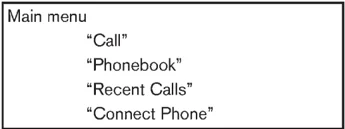
Main menu "Call" "Phonebook" "Recent Calls" "Connect Phone"
When you push and release the button on the steering wheel, you can choose from the commands on the Main Menu. The following pages describe these commands and the commands in each sub-menu.
Remember to wait for the tone before speaking.
You can say "Help" to hear the list of commands currently available anytime the system is waiting for a response.
A menu item can also be selected by scrolling the display with the SEEK switch and entering by pushing the button.
If you want to end an action without completing it, you can say "Cancel" or "Quit" at anytime the system is waiting for a response. The system will end the VR session. Whenever the VR session is cancelled, a double beep is played to indicate you have exited the system.
If you want to go back to the previous command, you can say "Go back" or "Correction" anytime the system is waiting for a response.
Call
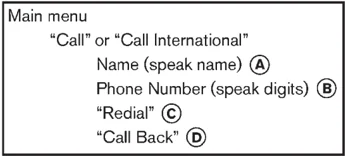
Main menu "Call" or "Call International" Name (speak name) A Phone Number (speak digits) B "Redial" C "Call Back" D
Name (a name) A If there are entries stored in the phonebook, a number associated with a name and location can be dialed.
See "Phonebook (phones without automatic phonebook download function)" later in this section to learn how to store entries.
When prompted by the system, say the name of the phonebook entry to call. The system acknowledges the name.
If there are multiple locations associated with the name, the system asks the user to choose the location.
Once the name and location are confirmed, the system begins the call.
Phone Number (speak digits) B When prompted by the system, say the number to call. Refer to "Making a call by entering a phone number" earlier in this section for more details.
"Redial" C Use the Redial command to call the last number that was dialed.
The system acknowledges the command, repeats the number and begins dialing.
If a redial number does not exist, the system announces, "There is no number to redial" and ends the VR session.
"Call back" D Use the Call Back command to dial the number of the last incoming call within the vehicle.
The system acknowledges the command, repeats the number and begins dialing.
If a call back number does not exist, the system announces, "There is no number to call back" and ends the VR session.
Special Dialing To dial more than 10 digits or any special characters, please say "Special Dialing". When the system acknowledges the command, the system will prompt you to speak the number.
Center display, heater, air conditioner, audio, phone and voice recognition systems 4-91
During a call
During a call there are several command options available. Push the button on the steering wheel to mute the receiving voice and enter commands.
- “Help” — The system announces the available commands.
- “Go back/Correction” — The system announces “Go back,” ends the VR session and returns to the call.
- “Cancel/Quit” — The system announces “Cancel,” ends the VR session and returns to the call.
- “Send/Enter/Call/Dial” — Use the Send command to enter numbers, “*” or “#” during a call. For example, if you were directed to dial an extension by an automated system:
Say: “Send one two three four.”
The system acknowledges the command and sends the tones associated with the numbers. The system then ends the VR session and returns to the call. Say “star” for “*”, say “pound” for “#”.
- “Transfer call” — Use the Transfer Call command to transfer the call from the Bluetooth® Hands-Free Phone System to the cellular phone when privacy is desired.
The system announces, “Transfer call. Call transferred to privacy mode.” The system then ends the VR session.
To reconnect a call from the cellular phone to the Bluetooth® Hands-Free Phone system, push the button.
- “Mute” — Use the Mute command to mute your voice so the other party cannot hear it. Use the mute command again to unmute your voice.
NOTE: If a call is ended or the cellular phone network connection is lost while the Mute feature is on, the Mute feature will be reset to “off” for the next call so the other party can hear your voice.
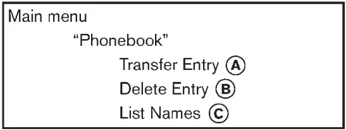
Main menu “Phonebook” Transfer Entry A Delete Entry B List Names C
Phonebook (phones without automatic phonebook download function) “Transfer Entry” A
Use the Transfer Entry command to store a new name in the system.
When prompted by the system, say the name you would like to give the new entry.
For example, say: “Mary.”
If the name is too long or too short, the system tells you, then prompts you for a name again.
Also, if the name sounds too much like a name already stored, the system tells you, then prompts you for a name again.
The system will ask you to transfer a phone number stored in the cellular phone’s memory.
To enter a phone number by voice command:
For example, say: “five five five one two one two.” See “How to say numbers” earlier in this section for more information.
To transfer a phone number stored in the cellular phone’s memory:
Say: “Transfer entry.” The system acknowledges the command and asks you to initiate the transfer from the phone handset. The new contact phone number will be transferred from the cellular phone via the Bluetooth® commu-
4-92 Center display, heater, air conditioner, audio, phone and voice recognition systems
nication link.
The transfer procedure varies according to each cellular phone. See the cellular phone Owner's Manual for details. You can also visit www. nissanusa.com/bluetooth for instructions on transferring phone numbers from NISSAN recommended cellular phones.
The system repeats the number and prompts you for the next command. When you have finished entering numbers or transferring an entry, choose "Store."
The system confirms the name, location and number.
"Delete Entry" Ⓑ
Use the Delete Entry command to delete one entry from the phonebook. After the system acknowledges a command, say the name to delete or say "List Names" to choose an entry.
"List Names" Ⓒ
Use the List Names command to hear all the names in the phonebook. The system recites the phonebook entries but does not include the actual phone numbers. When playback of the list is complete, the system returns to the main menu.
Playback of the list can be stopped at any time by pushing the button on the steering wheel. The system ends the VR session.
Phonebook (phones with automatic phonebook download function)
NOTE: Phonebook commands are not available when the vehicle is moving.
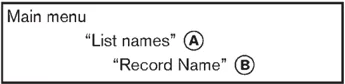
Main menu "List names" Ⓐ "Record Name" Ⓑ
For phones that support automatic download of the phonebook (PBAP Bluetooth profile), the "Phonebook" command is used to manage entries to the vehicle phonebook. You can say the name of an entry at this menu to initiate dialing of that entry.
The phonebook stores up to 1000 names for each phone paired with the system. Each name can have up to 4 locations/phone numbers associated with it.
When a phone is connected to the system, the phonebook is automatically downloaded to the vehicle. This feature allows you to access your phonebook from the Bluetooth® system and call contacts by name. You can record a custom voice tag for contact names that the system has difficulty recognizing. For more information see "Record Name" in this section.
NOTE: Each phone has its own separate phonebook. You cannot access Phone A's phonebook if you are currently connected with Phone B.
"List names" Ⓐ
Use the List Names command to hear all the names and locations in the phone book.
The system recites the phone book entries but does not include the actual phone numbers. When the playback of the list is complete, the system goes back to the main menu.
You can stop the playback of the list at any time by pressing the button on the steering wheel. The system ends the VR session. See the "Record Name" command in this section for information about recording custom voice tags for list entries that the system has difficulty pronouncing.
"Record name" Ⓑ
The system allows you to record custom voice tags for contact names in the phonebook that the vehicle has difficulty recognizing. This feature can also be used to record voice tags to directly dial an entry with multiple numbers. Up to 40 voice tags can be recorded to the system.
Center display, heater, air conditioner, audio, phone and voice recognition systems 4-93
Recent Calls
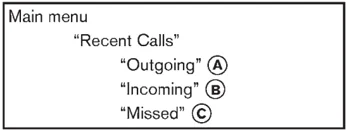
Main menu "Recent Calls" "Outgoing" A "Incoming" B "Missed" C
Use the Recent Calls command to access outgoing, incoming or missed calls.
"Outgoing" A Use the Outgoing command to list the outgoing calls made from the vehicle.
"Incoming" B Use the Incoming command to list the incoming calls made from the vehicle.
"Missed" C Use the Missed command to list the missed calls made to the vehicle that were not answered.
Connect Phone
NOTE: Add Phone command is not available when the vehicle is moving.
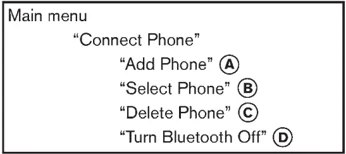
Main menu "Connect Phone" "Add Phone" A "Select Phone" B "Delete Phone" C "Turn Bluetooth Off" D
Use the Connect Phone commands to manage the phones connecting to the vehicle or to enable the Bluetooth® function on the vehicle.
"Add Phone" A Use the Add Phone command to add a phone to the vehicle. See "Connecting procedure" earlier in this section for more information.
"Select Phone" B Use the Select Phone command to select from a list of phones connected to the vehicle. The system will list the names assigned to each phone and then prompt you for the phone you wish to select. Only one phone can be active at a time.
"Delete Phone" C Use the Delete Phone command to delete a phone that is connected to the vehicle. The system will list the names assigned to each phone and then prompt you for the phone you wish to delete. Deleting a phone from the vehicle will also delete that phonebook for that phone.
Bluetooth Off D Use the Bluetooth Off command to prevent a wireless connection to your phone.
SPEAKER ADAPTATION (SA) MODE
Speaker Adaptation allows up to two out-of dialect users to train the system to improve recognition accuracy. By repeating a number of commands, the users can create a voice model of their own voice that is stored in the system. The system is capable of storing a different speaker adaptation model for each connected phone.
Training procedure
- Position the vehicle in a reasonably quiet outdoor location.
- Sit in the driver's seat with the engine running, the parking brake on, and the transmission in Park.
- Press and hold the button for more than 5 seconds.
- The system announces: "Press the PHONE SEND (button) for the hands-free phone system to enter the speaker adaptation mode or press the PHONE END (button) to select a different language."
4-94 Center display, heater, air conditioner, audio, phone and voice recognition systems
-
Press the [icon] button. For information on selecting a different language, see “Choosing a language” earlier in this section.
-
If the connected phone is already in use, the system will prompt you to overwrite. Follow the instructions provided by the system.
-
When preparation is complete and you are ready to begin, press the [icon] button.
-
The SA mode will be explained. Follow the instructions provided by the system.
-
When training is finished, the system will tell you an adequate number of phrases have been recorded.
-
The system will announce that speaker adaptation has been completed and the system is ready.
The SA mode will stop if:
- The [icon] button is pressed for more than 5 seconds in SA mode.
- The vehicle is driven during SA mode.
- The ignition switch is turned to the OFF or LOCK position.
Training phrases During the SA mode, the system instructs you to say the following phrases. (The system will prompt you for each phrase.)
- phonebook transfer entry
- dial 3 0 4 2 9
- delete call back number
- Incoming
- Transfer entry
- 8 pause 9 3 2 pause 7
- delete all entries
- call 7 2 4 0 9
- phonebook delete entry
- next entry
- dial star 2 1 7 0
- yes
- no
- select
- Missed
- dial 8 5 6 9 2
- Bluetooth on
- Outgoing
- call 3 1 9 0 2
- 9 7 pause pause 3 0 8
- cancel
- call back number
- call star 2 0 9 5
- delete phone
- dial 8 3 0 5 1
- Record Name
- 4 3 pause 2 9 pause 0
- delete redial number
- phonebook list names
- call 8 0 5 4 1
- correction
- connect phone
- dial 7 4 0 1 8
- previous entry
- delete
- dial 9 7 2 6 6
- call 7 6 3 0 1
Center display, heater, air conditioner, audio, phone and voice recognition systems 4-95
- go back
- call 5 6 2 8 0
- dial 6 6 4 3 7
4-96 Center display, heater, air conditioner, audio, phone and voice recognition systems
TROUBLESHOOTING GUIDE
The system should respond correctly to all voice commands without difficulty. If problems are encountered, try the following solutions. Where the solutions are listed by number, try each solution in turn, starting with number 1, until the problem is resolved.
| Symptom | Solution |
|---|---|
| System fails to interpret the command correctly. | 1. Ensure that the command is valid. See “LIST OF VOICE COMMANDS” earlier in this section. |
| 2. Ensure that the command is spoken after the tone. | |
| 3. Speak clearly without pausing between words and at a level appropriate to the ambient noise level in the vehicle. | |
| 4. Ensure that the ambient noise level is not excessive (for example, windows open or defroster on). NOTE: If it is too noisy to use the phone, it is likely that the voice commands will not be recognized. | |
| 5. If more than one command was said at a time, try saying the commands separately. | |
| 6. If the system consistently fails to recognize commands, the voice training procedure should be carried out to improve the recognition response for the speaker. See “SPEAKER ADAPTATION (SA) MODE” earlier in this section. | |
| The system consistently selects the wrong entry from the phonebook. | 1. Ensure that the phonebook entry name requested matches what was originally stored. This can be confirmed by using the “List Names” command. See “Phonebook (phones without automatic phonebook download function)” earlier in this section. |
| 2. Replace one of the names being confused with a new name. |
Center display, heater, air conditioner, audio, phone and voice recognition systems 4-97
Model "Z34-D" EDITED: □□□□/□/10
NISSAN VOICE RECOGNITION SYSTEM (models with navigation system)
NISSAN Voice Recognition allows hands-free operation of the Phone, Navigation, Information and Audio systems in one of two modes, Standard Mode or Alternate Command Mode.
In Standard Mode, commands that are available are always shown on the display and announced by the system. You can complete your desired operation by simply following the prompts given by the system. (See "NISSAN VOICE RECOG- NITION STANDARD MODE" later in this section for details.)
For advanced operation, you can use the Alternate Command Mode. (See "NISSAN VOICE RECOGNITION ALTERNATE COM- MAND MODE" later in this section for details.) When this mode is active, an expanded list of commands can be spoken after pushing the TALK switch, and the voice command menu prompts are turned off. Review the expanded command list, which is available when this mode is active. Note that in this mode the recognition success rate may be affected as the number of available commands and the ways of speaking each command are increased.
To switch one mode to another, see each mode description later in this section.
To improve the recognition success rate when Alternate Command Mode is active, try using the Speaker Adaptation Function available in that mode. Otherwise, it is recommended that
Alternate Command Mode be turned off and Standard Mode be used for the best recognition performance.
For the voice commands for the navigation system, refer to the Navigation System Owner's Manual of your vehicle.
For Roadster models:
The voice recognition system cannot be oper- ated when the soft top is not closed.
NISSAN VOICE RECOGNITION STANDARD MODE
The following section is applicable when the Standard Mode is activated.
The Standard Mode enables you to complete the desired operation by simply following the prompts that appear on the display and also are announced by the system.
SAA2529
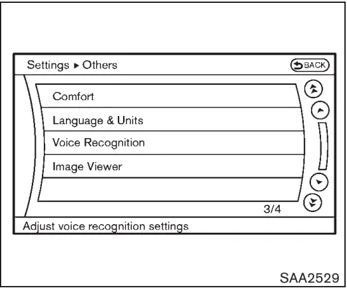
Activating Standard Mode When the Alternate Command Mode is active, perform the following steps to switch to the Standard Mode.
- Push the SETTING button on the instrument panel.
- Select the "Others" key.
- Select the "Voice Recognition" key.
4-98 Center display, heater, air conditioner, audio, phone and voice recognition systems
 SAA2530
- Select the “Alternate Command Mode” key.
- The indicator turns off and the Standard Mode activates.
Displaying user guide
If you use the NISSAN Voice Recognition system for the first time or you do not know how to operate it, you can display the User Guide for confirmation.
You can confirm how to use voice commands by accessing a simplified User Guide, which contains basic instructions and tutorials for several voice commands.
 SAA2531
- Push the INFO button on the instrument panel.
- Select the “Others” key.
- Select the “Voice Recognition” key.
- Select the “User Guide” key.
- Select a preferred item.
You can skip steps 1 and 3 above if you say “Help”.
Available items:
- Getting Started Describes the basics of how to operate the NISSAN Voice Recognition system.
- Let’s Practice Mode that allows practicing by following the instructions of the system voice.
- Using the Address Book Tutorial for entering a destination by using the Address Book.
- Finding a Street Address (if so equipped) Tutorial for entering a destination by street address.
- Placing Calls Tutorial for making a phone call by voice command operation.
- Help on Speaking Displays useful tips of speaking for correct command recognition by the system.
Note that the Command List feature is only available when Alternate Command Mode is active.
Center display, heater, air conditioner, audio, phone and voice recognition systems 4-99
Getting Started
Before using the NISSAN Voice Recognition system for the first time, you can confirm how to use commands by viewing the Getting Started section of the User Guide.
- Select the "Getting Started" key.
- You can confirm the page by scrolling the screen using the multi-function controller.
Tutorials on the operation of the NISSAN Voice Recognition system
If you choose "Using the Address Book", "Finding a Street Address" or "Placing Calls", you can view tutorials on how to perform these operations using NISSAN Voice Recognition.
Let's Practice
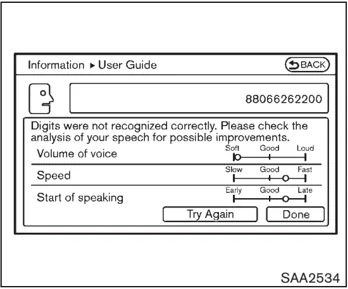
This mode helps learn how to use the NISSAN Voice Recognition system.
- Select the "Let's Practice" key.
- After the message screen appears, push the TALK switch on the steering wheel.
- Speak the displayed number after the tone. The evaluation screen will be displayed and the result can be confirmed.
Useful tips for correct operation
You can display useful speaking tips to help the system recognize your voice commands correctly.
Select "Help on Speaking" to start display.
USING THE SYSTEM
Initialization
When the ignition switch is pushed to the ON position, NISSAN Voice Recognition is initialized, which takes a few seconds. When completed, the system is ready to accept voice commands. If the TALK switch is pushed before the initialization completes, the display will show the message: "Phonetic data down-
4-100 Center display, heater, air conditioner, audio, phone and voice recognition systems
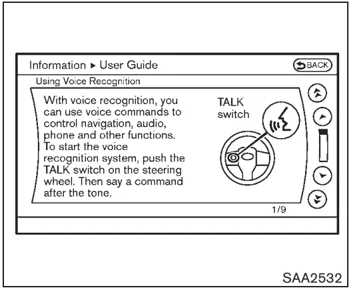
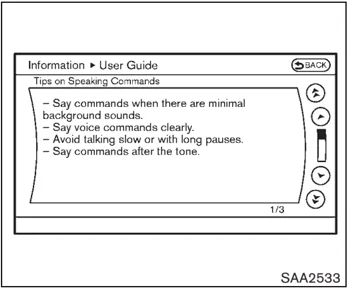
loaded. Please wait.” or a beep sounds.
Before starting
To get the best recognition performance from NISSAN Voice Recognition, observe the following:
- The interior of the vehicle should be as quiet as possible. Close the windows to eliminate the surrounding noises (traffic noise and vibration sounds, etc.), which may prevent the system from correctly recognizing the voice commands.
- Wait until the tone sounds before speaking a command.
- Speak in a natural conversational voice without pausing between words.
- If the air conditioner is set to “Auto”, the fan speed is automatically lowered so that your commands can be recognized more easily.
SAA2167
Giving voice commands
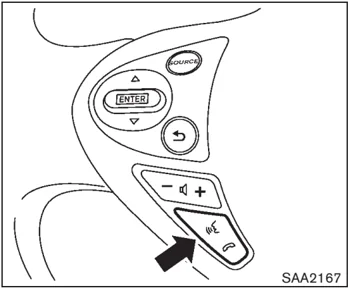
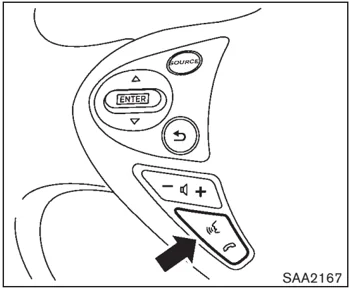
- Push the TALK switch located on the steering wheel.
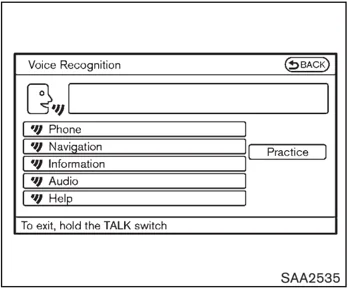
SAA2535
-
A list of commands appears on the screen, and the system announces, “Would you like to access Phone, Navigation, Information, Audio or Help?”.
-
After the tone sounds and the icon on the screen changes from to , speak a command.
Selecting the “Practice” key will start the practice mode. See “Let’s Practice” earlier in this section.
-
Continue to follow the voice menu prompts and speak after the tone sounds until your desired operation is completed.
Selecting the “Help” key can display the
Center display, heater, air conditioner, audio, phone and voice recognition systems 4-101
detailed information of the each command.
Operating tips:
- Say a command after the tone.
- Commands that are available are always shown on the display and spoken through voice menu prompts. Commands other than those that are displayed are not accepted. Please follow the prompts given by the system.
- If the command is not recognized, the system announces, "Please say again". Repeat the command in a clear voice.
- Push the BACK button once to return to the previous screen.
- To exit the voice recognition system, push and hold the TALK ☾ switch. The message, "Voice canceled" will be announced.
- To skip the voice guidance function and give the command immediately, press the TALK ☾ switch to interrupt the system. Remember to speak after the tone.
- If you want to adjust the volume of the system feedback, push the volume control buttons [+] or [–] on the steering switch or use the audio system volume knob while the system is making an announcement.
How to speak numbers:
NISSAN Voice Recognition requires a certain way to speak numbers when giving voice commands. Refer to the following examples.
General rule
Only single digits 0 (zero) to 9 can be used. (For example, if you would like to say 500, "five zero zero" can be used, but "five hundred" cannot.)
Examples
- 1-800-662-6200 — "One eight zero zero six six two six two zero zero"
Improving Recognition of Phone numbers
You can improve the recognition of phone numbers by saying the phone number in three groups of numbers. For example, when you try to call 800-662-6200, say "eight zero zero" first, and the system will then ask you for the next three digits. Then, say "six six two". After recognition, the system will then ask for the last four digits. Say, "six two zero zero". Using this method of phone digit entry can improve recognition performance.
When speaking a house number, speak the number "0" as "zero". If the letter "o (Oh)" is included in the house number, it will not be recognized as the number "0 (zero)" even if you speak "oh" instead of "zero". Please speak "zero" for the number "0 (zero)", "oh" for the letter "o (oh)"
4-102 Center display, heater, air conditioner, audio, phone and voice recognition systems
Command List
Category Command:
● Phone Command:
Center display, heater, air conditioner, audio, phone and voice recognition systems 4-103
- Navigation Command:
| Command | Action |
|---|---|
| Home | Sets a route to your home that is stored in the Address Book. |
| Address | Searches for a location by the street address specified, and sets a route to the location. |
| Places | Sets a route to a facility near the current vehicle location. |
| Address Book | Searches for stored information in the Address Book. |
| Previous Destinations | Sets a route to a previous destination. |
- Information Command:
| Command | Action |
|---|---|
| Fuel Economy | Displays fuel economy information. |
| Maintenance | Displays maintenance information. |
| Traffic Information | Turns the traffic information system ON and OFF. |
| Where am I? | Displays your current location. |
- Audio Command:
| Command | Action |
|---|---|
| AM | Turns to the AM band, selecting the station last played. |
| FM | Turns to the FM band, selecting the station last played. |
| XM | Turns to the XM Satellite band, selecting the channel last played. |
| Music Box | Turns on the “Music Box” hard disk drive audio system. |
| CD | Starts to play a CD. |
4-104 Center display, heater, air conditioner, audio, phone and voice recognition systems
● General Commands
CommandAction Go backCorrects the last recognition result to return to the previous screen ExitCancels Voice Recognition
Center display, heater, air conditioner, audio, phone and voice recognition systems 4-105
Voice command examples
To use the NISSAN Voice Recognition function, speaking one command is sometimes sufficient, but at other times it is necessary to speak two or more commands. As examples, some additional basic operations by voice commands are described here.
For navigation system commands, see the separate Navigation System Owner's Manual.
 SAA2167
Example 1 - Placing a call to the phone number 800-662-6200:
- Push the TALK switch located on the steering wheel.
 SAA2535
- The system announces, "Would you like to access Phone, Navigation, Information, Audio or Help?"
- Speak "Phone".
4-106 Center display, heater, air conditioner, audio, phone and voice recognition systems
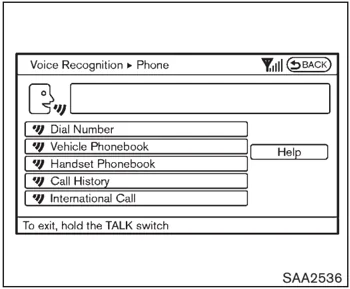
- Speak “Dial Number”.
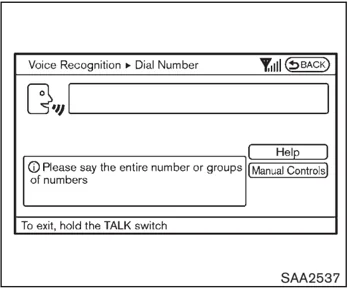
- Speak “8 0 0”. Selecting the “Manual Controls” key switches the screen to the keypad to input the phone number manually.
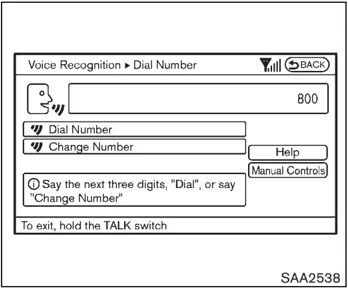
- The system announces, “Please say the next three digits or dial, or say change number.”
- Speak “6 6 2”.
Center display, heater, air conditioner, audio, phone and voice recognition systems 4-107
 SAA2539
-
The system announces, “Please say the last four digits” or say change number.
-
Speak “6 2 0 0”.
 SAA2540
-
The system announces, “Dial or Change Number?”
-
Speak “Dial”.
-
The system makes a call to 800-620-6200.
Note:
-
You can also speak “800-620-6200” (10 continuous digits) or “620-6200” (7 continuous digits), if the area code is not necessary. However, the 3-3-4 digit grouping is recommended for improved recognition. (See “How to speak numbers” earlier in this section.)
-
You can only say a phone number using the 3-3-4 grouping, 7 digits, and 10 digits using this command. Please use the “International Call” command for all other formats.
-
If you say “Change Number” during phone number entry, the system will automatically request that you repeat the number using the 3-3-4 format. In this case please say the area code first and then follow the prompts.
-
Do not add a “1” in front of the area code when speaking phone numbers.
-
If the system does not recognize your command, please try repeating the command using a natural voice. Speaking too slow or too loudly may further decrease recognition performance.
4-108 Center display, heater, air conditioner, audio, phone and voice recognition systems
Example 2 - Placing an international call to the phone number 011-81-111-222-3333:
- Push the TALK switch located on the steering wheel.
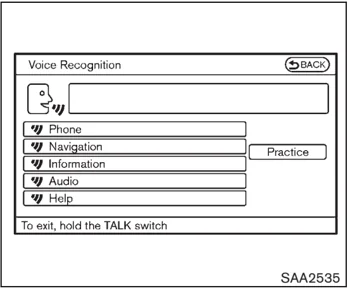
-
The system announces, “Would you like to access Phone, Navigation, Information or Help?”
-
Speak “Phone”.
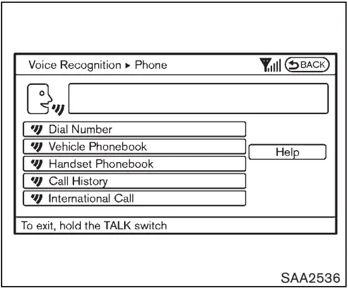
- Speak “International Call”.
Center display, heater, air conditioner, audio, phone and voice recognition systems 4-109
 SAA2541
- Speak “011811112223333”.
 SAA2542
- Speak “Dial”.
- System makes a call to 011-81-111-222-3333.
Note: Any digit input format is available in the International Number input process.
NISSAN VOICE RECOGNITION ALTERNATE COMMAND MODE
The following section is applicable when Alternate Command Mode is activated.
When Alternate Command Mode is activated, an expanded list of commands can be used after pressing the TALK switch. In this mode, available commands are not fully shown on the display or prompted. Review the expanded command list when this mode is active. See examples of Alternate Command Mode screens.
Please note that in this mode the recognition success rate may be affected as the number of available commands and ways of speaking each command are increased. To improve the recognition success rate, try using the Speaker Adaptation Function available in that mode. (See “Speaker adaptation function (for Alternate Command Mode)” later in this section.) Otherwise it is recommended that Alternate Command Mode be turned OFF and Standard Mode be used for the best recognition performance.
4-110 Center display, heater, air conditioner, audio, phone and voice recognition systems
 SAA2529
Activating Alternate Command Mode
When the Standard Mode is active, perform the following steps to switch to the Alternate Command Mode.
- Push the SETTING button on the instrument panel.
- Highlight the "Others" key.
- Highlight the "Voice Recognition" key.
 SAA2543
- Highlight the "Alternate Command Mode" key.
- The confirmation message is displayed on the screen. Push the "OK" key to activate the Alternate Command Mode.
Displaying command list
If you are controlling the system by voice commands for the first time or do not know the appropriate voice command, perform the following procedure for displaying the voice command list (available only in Alternate Command Mode).
 SAA2544
- Push the INFO button on the instrument panel.
- Select the "Others" key.
- Select the "Voice Recognition" key.
- Select the "Command List" key.
Center display, heater, air conditioner, audio, phone and voice recognition systems 4-111
 SAA2545
- Select a category from the list.
 SAA2546
-
Select an item.
-
If necessary, scroll the screen using the multi-function controller to view the entire list.
-
Press the BACK button to return to the previous screen.
4-112 Center display, heater, air conditioner, audio, phone and voice recognition systems
List of help commands
Phone Commands:
| Command | Action | |
|---|---|---|
| Dial Number | Makes a call to a spoken phone number. | |
| Vehicle Phonebook | Makes a call to a contact that is stored in the Vehicle Phonebook. | |
| Handset Phonebook | Makes a call to a contact that is stored in the mobile phone. | |
| Call History | Incoming Calls | Makes a call to the incoming call number. |
| Outgoing Calls | Makes a call to the dialed number. | |
| Missed Calls | Makes a call to the Missed calls number. | |
| International Call | Makes an international call by allowing more than 10 digits to be spoken. |
Navigation Commands:
| Command | Action |
|---|---|
| Home | Sets a route to your home that is stored in the Address Book. |
| Address | Searches for a location by the street address specified, and sets a route to the location. |
| Places | Sets a route to a facility near the current vehicle location. |
| Address Book | Searches for stored information in the Address Book. |
| Previous Destinations | Sets a route to a previous destination. |
| Previous Start Point | Sets a route to a previous starting point. |
| Delete Destination | Deletes a destination. |
Center display, heater, air conditioner, audio, phone and voice recognition systems 4-113
Information Commands:
| Command | Action |
|---|---|
| Fuel Economy | Displays fuel economy information. |
| Maintenance | Displays maintenance information. |
| Where am I? | Displays your current location. |
| Traffic Information | Turns the traffic information system ON and OFF. |
| Weather Information | Displays weather information. |
| Weather Map | Displays a weather map. |
Audio Commands:
| Command | Action |
|---|---|
| Music Box | Turns on the “Music Box” hard disk drive audio system. |
| CD | Starts to play a CD. |
| FM | Turns to the FM band, selecting the station last played. |
| AM | Turns to the AM band, selecting the station last played. |
| XM | Turns to the XM Satellite Radio band, selecting the channel last played. |
| USB | Turns on the USB memory. |
| Bluetooth Audio | Turns on the Bluetooth® audio player. |
| AUX | Turns on the AUX. |
4-114 Center display, heater, air conditioner, audio, phone and voice recognition systems
Model "Z34-D" EDITED: □□□□/□/10
Help Commands:
| Command | Action | |
|---|---|---|
| Command List | Navigation Commands | Displays the navigation command list. |
| Phone Commands | Displays the phone command list. | |
| Audio Commands | Displays the audio command list. | |
| Information Commands | Displays the information command list. | |
| Help Commands | Displays the help command list. | |
| User Guide | Displays the User Guide. | |
| Speaker Adaptation | The system can memorize the voices of up to three persons. |
General Commands:
| Command | Action |
|---|---|
| Go back | Corrects the last recognition result to return to the previous screen |
| Exit | Cancels Voice Recognition |
Center display, heater, air conditioner, audio, phone and voice recognition systems 4-115
SAA2547
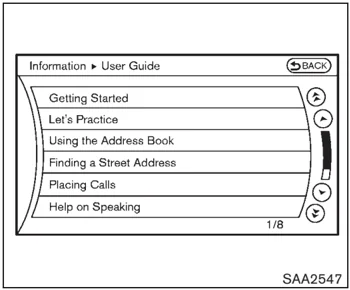
Displaying user guide
You can confirm how to use voice commands by accessing a simplified User Guide, which contains basic instructions and tutorials for several voice commands.
- Push the INFO button on the instrument panel.
- Select the “Others” key using the multi-function controller and push the ENTER button.
- Highlight the “Voice Recognition” key using the multi-function controller and push the ENTER button.
- Highlight the “User Guide” key using the multi-function controller and push the ENTER button.
- Highlight an item using the multi-function controller and push the ENTER button.
Available items:
- Getting Started Describe the basics of how to operate the NISSAN Voice Recognition system.
- Let’s Practice Mode that allows practicing by following the instructions of the system voice.
- Using the Address Book Refer to Navigation System Owner’s Manual.
- Finding a Street Address (if so equipped) Refer to Navigation System Owner’s Manual.
- Placing Calls Tutorial for making a phone call by voice command operation.
- Help on Speaking Displays useful tips for how to correctly speak commands in order for them to be properly recognized by the system.
- Voice Recognition Settings Describes the available voice recognition settings.
- Adapting the System to Your Voice Tutorial adapting the system to your voice.
USING THE SYSTEM
Initialization
When the ignition switch is pushed to the ON position, NISSAN Voice Recognition is initialized, which takes a few seconds. When completed, the system is ready to accept voice commands. If the TALK switch is pushed before the initialization completes the display will show the message: “Phonetic data downloaded. Please wait.” or a beep sounds.
Before starting
To get the best performance from NISSAN Voice Recognition, observe the following.
- Keep the interior of the vehicle as quiet as possible. Close the windows to eliminate the surrounding noises (traffic noises, vibration sounds, etc.), which may prevent the system from recognizing the voice commands correctly.
- When the air conditioner is in the AUTO mode, the fan speed decreases automatically for easy recognition.
4-116 Center display, heater, air conditioner, audio, phone and voice recognition systems
- Wait until a tone sounds before speaking a command.
- Speak in a natural voice without pausing between words.
SAA2167
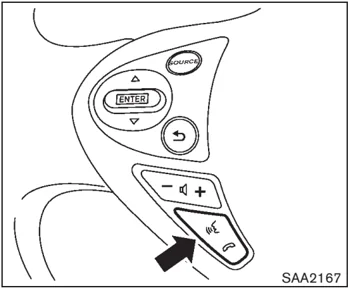
Giving voice command
- Push and release the TALK switch located on the steering wheel.
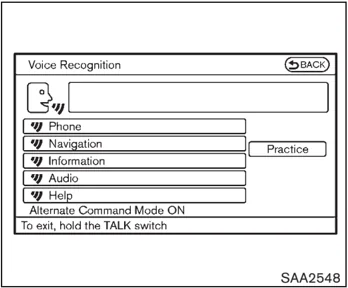
SAA2548
- A list of commands appears on the screen, and the system announces, "Please say a command".
- After the tone sounds and the icon on the screen changes from to , speak a command.
Operating tips:
- Voice commands cannot be accepted when the icon is .
- The list displayed can be scrolled by tilting the menu control switch on the steering wheel.
- If the command is not recognized, the
Center display, heater, air conditioner, audio, phone and voice recognition systems 4-117
system announces, “Please say again”. Repeat the command in a clear voice.
- Push the BACK button once to return to the previous screen.
- If you want to cancel the command, push and hold the TALK ☞ switch for 1 second. The message “Voice canceled” will be announced.
- To skip the voice guidance function and give the command immediately, press the TALK ☞ switch to interrupt the system. Remember to speak after the tone.
- If you want to adjust the volume of the system feedback, push the volume control switch (+ or –) on the steering wheel or use the audio system volume knob while the system is making an announcement.
How to speak numbers:
NISSAN Voice Recognition requires a certain way to speak numbers when giving voice commands. Refer to the following examples.
General rule
Only single digits 0 (zero) to 9 can be used. (For example, if you would like to say 500, “five zero zero” can be used, but “five hundred” cannot.
Phone numbers
Speak phone numbers according to the following examples:
- 1-800-662-6200 — “Dial one eight zero zero six six two six two zero zero.”
Note 1: For the best voice recognition phone dialing results, say phone numbers as single digits.
Note 2: You cannot say 555-6000 as “five five five six thousands”.
Note 3: When speaking a house number, speak the number “0” as “zero”. If the letter “o (Oh)” is included in the house number, it will not be recognized as the number “0 (zero)” even if you speak “oh” instead of “zero”. Please speak “zero” for the number “0 (zero)”, “oh” for the letter “o (oh)”.
SAA2549
Speaker adaptation function (for Alternate Command Mode)
The voice recognition system has a function to learn the user’s voice for better voice recognition performance. The system can memorize the voices of up to three persons.
Having the system learn the user's voice:
- Push the SETTING button on the instrument panel and select the “Others” key.
- Select the “Voice Recognition” key.
- Select the “Speaker Adaptation” key.
4-118 Center display, heater, air conditioner, audio, phone and voice recognition systems
 SAA2550
-
Select the user whose voice is memorized by the system.
-
Select the "Start Speaker Adaptation Learning" key.
 SAA2551
- Select a category to be learned by the system from the following list.
- Phone Commands
- Navigation Commands
- Information Commands
- Audio Commands
- Help Commands
The voice commands in the category are displayed.
- Select a voice command and then push the ENTER button.
The voice recognition system starts.
Center display, heater, air conditioner, audio, phone and voice recognition systems 4-119
 SAA2552
-
The system requests that you repeat a command after a tone.
-
After the tone sounds and the icon on the screen changes from [icon] to [icon], speak the command that the system requested.
-
When the system has recognized the voice command, the voice of the user is learned.
Push the [icon] switch or BACK button to return to the previous screen.
If the system has learned the command correctly, the voice command status on the right side of the command turns from "None" to "Stored".
 SAA2553
Speaker Adaptation function settings:
Edit User Name Edit the user name using the keypad displayed on the screen.
Delete Voice Data Resets the user's voice that the voice recognition system has learned.
Continuous Learning When this item is turned to ON, you can have the system learn the voice commands in succession, without selecting commands one by one.
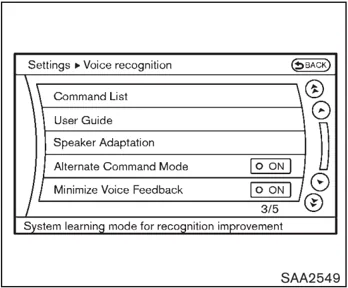
Minimize voice feedback (for Alternate Command Mode) To minimize the voice feedback from the system, perform the following steps.
- Push the SETTING button on the instrument panel.
- Select the "Others" key.
- Select the "Voice Recognition" key.
- Select the "Minimize Voice Feedback" key.
- The setting is turned to ON and the voice guidance will now be reduced when using the Voice Recognition system.
4-120 Center display, heater, air conditioner, audio, phone and voice recognition systems
TROUBLESHOOTING GUIDE
The system should respond correctly to all voice commands without difficulty. If problems are encountered, follow the solutions given in this guide for the appropriate error.
Where the solutions are listed by number, try each solution in turn, starting with number one, until the problem is resolved.
| Symptom/error message | Solution |
|---|---|
| Displays “COMMAND NOT RECOGNIZED” or the system fails to interpret the command correctly. | 1. Ensure that the command format is valid, see “Command List” earlier in this section. |
| 2. Speak clearly without pausing between words and at a level appropriate to the ambient noise level. | |
| 3. Ensure that the ambient noise level is not excessive, for example, windows open or defrost on. | |
| NOTE:If it is too noisy to use the phone, it is likely that voice commands will not be recognized. | |
| 4. If optional words of the command have been omitted, then the command should be tried with these in place. | |
| The system consistently selects the wrong voicetag in the phonebook. | 1. Ensure that the voicetag requested matches what was originally stored. (See “BLUETOOTH® HANDS-FREE PHONE SYSTEM (models with navigation system)” earlier in this section; page 4-74.) |
| 2. Replace one of the voicetags being confused with a different voicetag. | |
| The system cannot be operated.* | 1. Make sure that the soft top is usable. If the soft top is not working, contact a NISSAN dealer. |
| 2. Close the soft top. | |
| 3. Open and close the soft top before operating the system. |
*: For Roadster models.
Center display, heater, air conditioner, audio, phone and voice recognition systems 4-121
Model "Z34-D" EDITED: □□□□/□□/4
MEMO
4-122 Center display, heater, air conditioner, audio, phone and voice recognition systems